Documentation index for AI tools: /llms.txt
With the Manual setup, you use a regular topic from your publication as the cover page of a printed output. Here’s how to do this:
Preparing the Cover Page Topic
First, prepare the content inside your working project and publish it:
- In your project, create a new topic and add the content you want to display on the cover.
- Open Topic Properties.

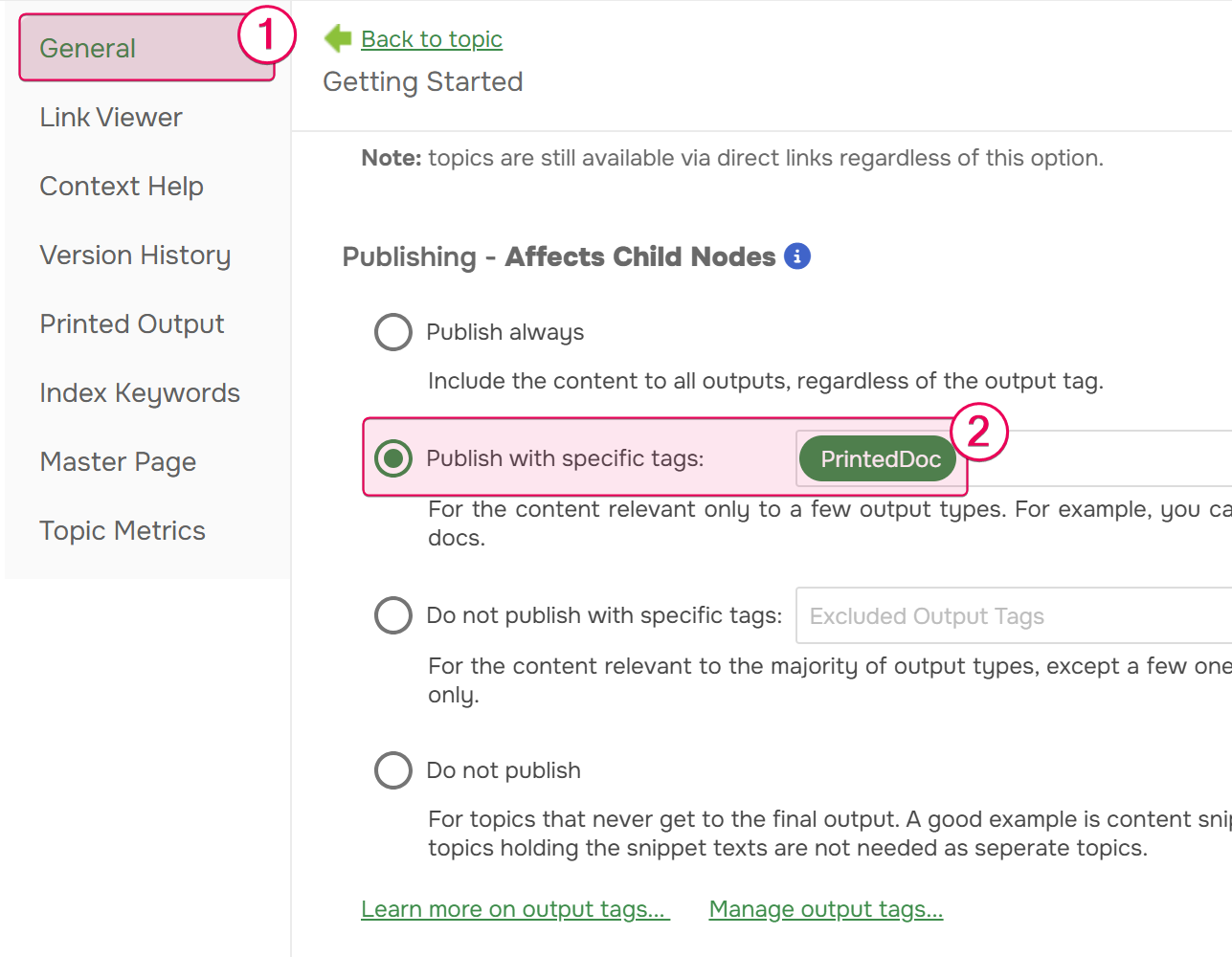
- Find the Publishing - Affects Child Nodes section.
-
Select Publish with specific tags and specify the output tag you use for printed output, for example PrintedDoc. This keeps the cover out of your online documentation.
- Publish your project. Ensure the publication visibility is set to Private and apply the same output tags you used for the cover topic in the previous step.
- After the publication is created, open it. Navigate to your cover page topic within the publication and copy its URL.
Setting the Cover in an Export Preset
Now, link the published topic to your preset:
- Go to Settings → Single-Sourcing → Export Presets.
- Hover over a Manual setup preset and click Edit.
-
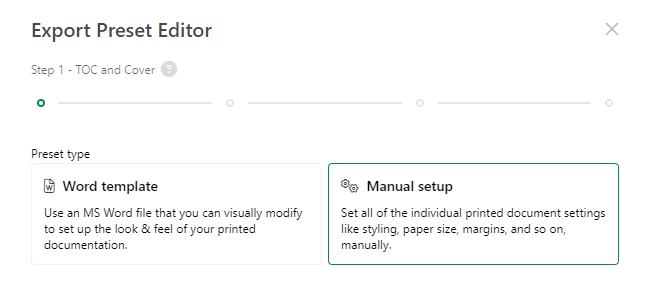
On the first step of the Export Preset Editor, make sure Manual setup is selected, and click Next.
-
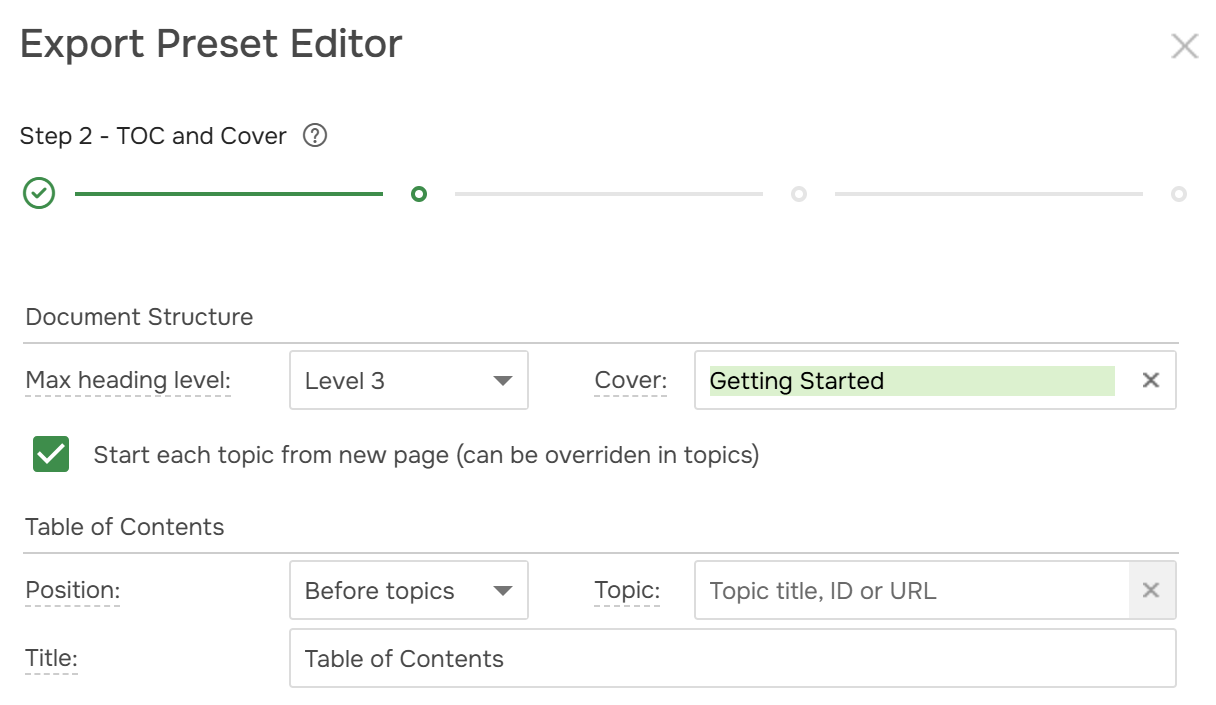
On the second step, in the Document Structure section, find the Cover field. Paste the URL you copied earlier and select the recognized topic from the dropdown.
- Go through the remaining steps and click Finish.
Exporting the Publication
With the preset configured, you can now export your documentation. Remember that you must export the publication, not the project directly.
- Go to the Projects page.
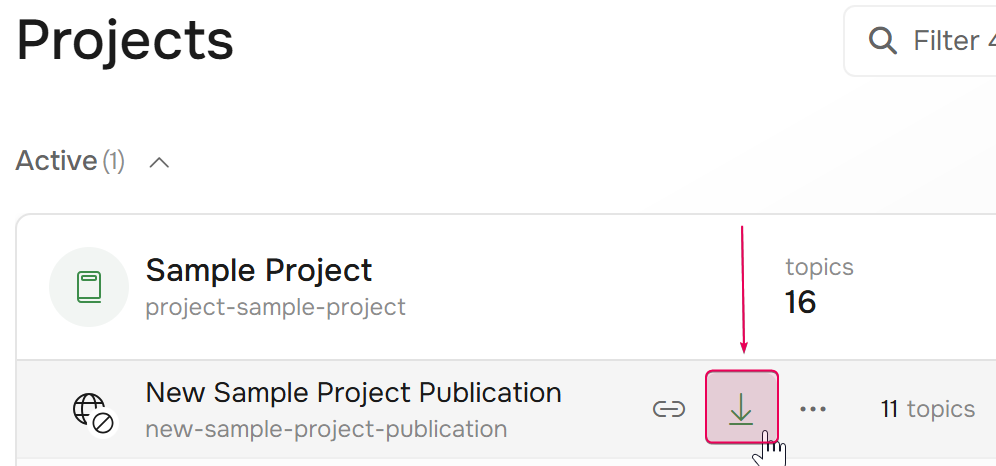
- Hover over the publication that contains your cover page topic.
- Click Export a publication.
- Select a printed format, such as PDF or DOCX.
- Select your Export Preset.
- Go through the remaining steps and finish the export.