Documentation index for AI tools: /llms.txt
During manual setup of an export preset, you can configure the appearance and generation behavior of the TOC and headings.
TOC settings
On step 2 of the Manual setup you can configure the Table of contents and cover page look. For details on Cover Page configuration parameters, refer to Manual Setup of Cover Page.
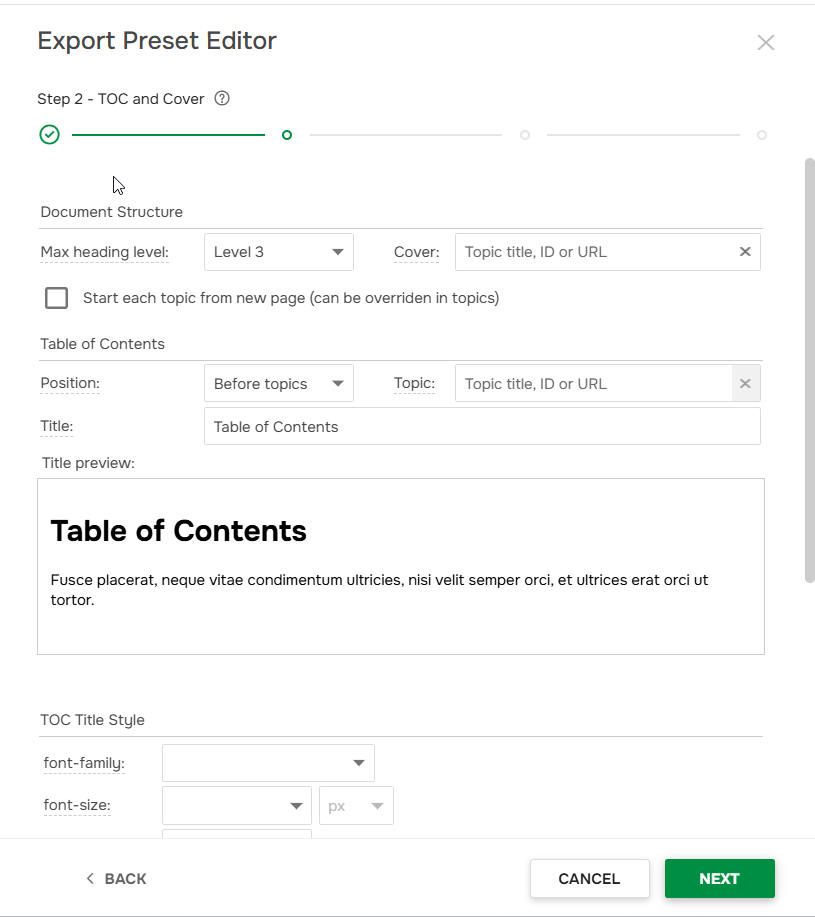
There are the following settings:
-
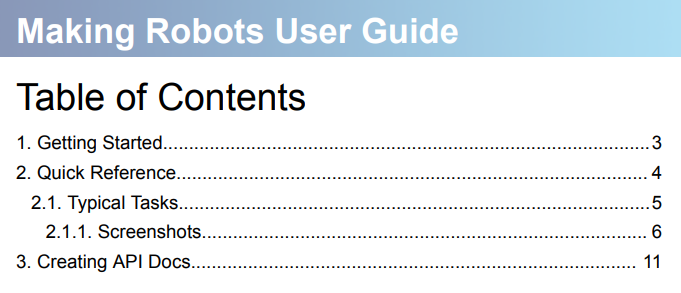
Max heading level. Defines the maximum depth of headings in the final outline structure. If you have 6 levels of TOC in your docs, you may
want to limit the PDF TOC to only 3 levels for better readability. All deeper levels will be put inside their respective level 3 parent without making additional TOC levels.
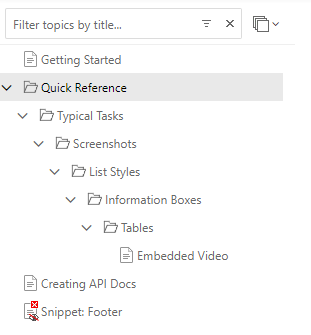
For example, we have the following TOC:
If we limit it to 3, the result will be the following:
- Start each topic from a new page. Topics can start from a new page or right after the previous topic. These settings specify the default behavior that can be overridden in specific topic settings so that all topics start from a new page, but one specific topic does not.
Headings settings
On step 3 you can configure headings look on each level.
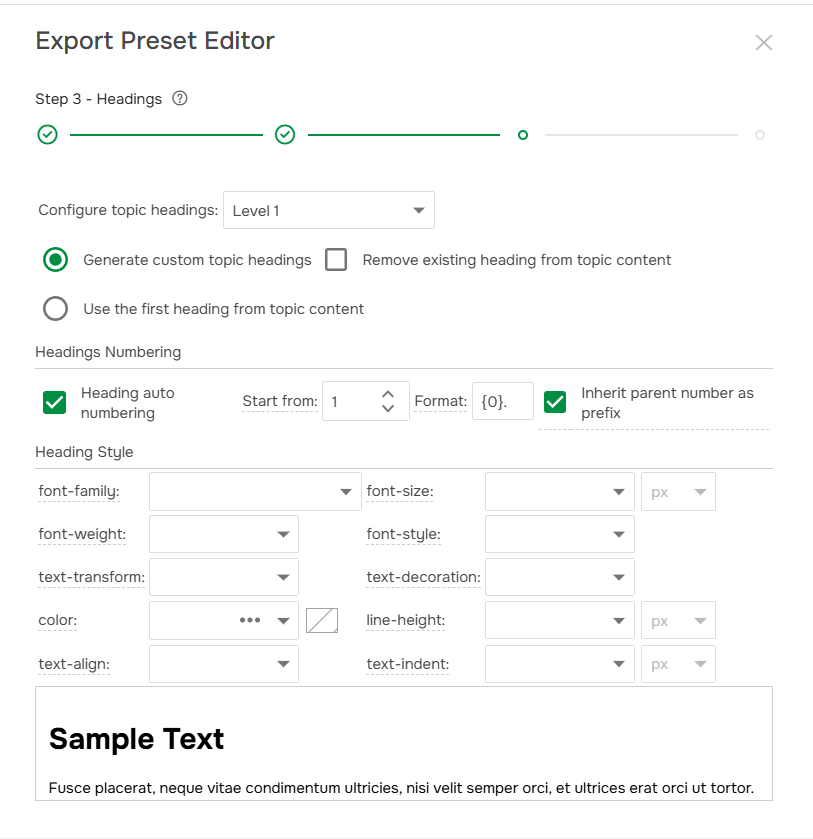
You can change the following settings:
-
Configure topic headings. This selector can be specified for
each topic level and can be different for different topic levels. So, you
can select a level, specify all parameters below, and then select another
level.
- Generate custom topic headings. By default, when ClickHelp generates a printed version, the Generate custom topic headings option is enabled. It means that the system auto-creates topic titles before each topic based on the topic title you configure in ClickHelp.
- Use the first heading from topic content. In some cases, you may have those topic
headings inside the topic content already, as the first line. This may
happen when you import content from CHM or HTML. To avoid duplicate headings
in the printed version, you can enable the
Use the first heading from topic content option that will allow you to
change the logic and have ClickHelp check if a topic has a heading as the
first line, and if it's there, avoid generating a heading, but just use the
existing one from the topic content.
For example, we have a topic where Getting Started is the title and Minimalist Template is the <h1> heading.
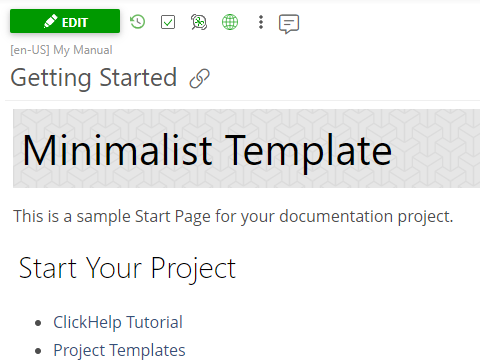
If you check the Generate custom topic headings box, the Getting Started title will be in your TOC.
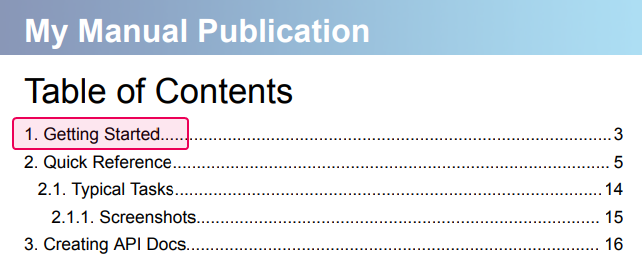
If you check the Use the first heading from topic content box, the Minimalist Template heading will be in your TOC.
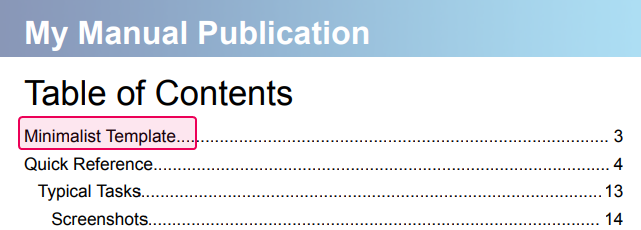
If you enable the Generate custom topic headings option, you can also check the Remove existing heading from topic content checkbox (disabled by default). Enabling this checkbox means that the custom topic heading generated by ClickHelp will replace the existing one.
-
Heading numbering section. This section allows you to specify the
headings numbering format.
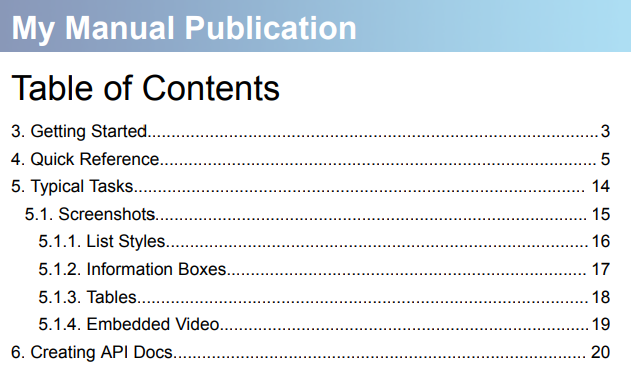
For example, we set up that heading numbering start from 3, and here is the result: