Enabling the Published Docs MCP Server lets your readers connect their own AI agents to your public documentation. This topic covers the portal settings involved and how to verify that the server responds.
Enable the Server
- Go to portal settings, AI integrations → MCP server.
- Find the Published Docs MCP Server block. The page has two independent blocks, and the other one controls the Authoring MCP Server, which is a separate feature with its own access rules.
- Select the checkbox to turn the server on.
Once the server is on, its endpoint URL is available to them directly in the Reader UI with the Connect with MCP block, together with ready-to-run connection commands.
| At least one publication must be public — the Published Docs MCP Server does not serve Restricted publications or unpublished projects. |
Show or Hide the Connect with MCP Block
By default, readers see a Connect with MCP block in the Copy page menu on every page of your public documentation. The block gives them the endpoint URL and a quick-connect button for the most common agents.
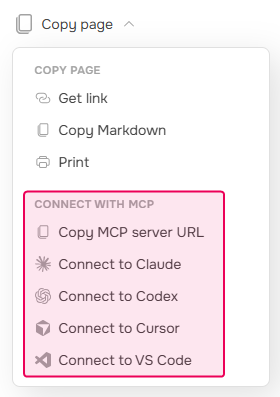
To make the block visible:
- Go to portal settings, Reader interface.
- Make sure the Next Reader UI template is selected.
- In the Topic Viewer section, select Show the 'Connect with MCP' options.
| Hiding the block does not disable the server. Agents that already have the endpoint URL keep working. To stop serving content over MCP, clear the checkbox in AI integrations → MCP server. |
For the other settings on this page, see Reader Interface Settings.
Check That It Works
Connect an agent the way your readers would, and confirm that it answers from your content.
- Open any page of your public documentation as an anonymous visitor — either logged out or using a new Incognito browser session.
- Click Copy page, then use the Connect with MCP block to copy the MCP server URL or a connection command for an agent you have available.
- Add the MCP server to your AI agent either by using the endpoint URL or runing the command at the command line.
- Ask the agent a question that can only be answered from your documentation, and check the answer against the source topic.
If the agent cannot reach the server, confirm that the checkbox in AI integrations is selected and that the publication you are testing against is public.
Next Step
Enabling the server makes it available, but your readers still have to find out that it exists. See Tell Your Readers About Published Docs MCP Server.