A Reader Interface Template (also called Reader UI Template) defines the layout and base styling of the Reader UI. It serves as a starting point: pick a template that matches the navigation pattern and look you want, then refine details through Reader Interface Settings or Branding.css.
| Reader Interface Templates apply only to online publications. They are not applied to WebHelp or any other downloadable output. |
- Available Templates
- Choose a Reader UI Template
- Reader UI Preview
- Override Reader UI Template for a Project
Available Templates
ClickHelp has seven ready templates:
- Next (recommended, AI fiendly)
- Clear Sky
- Sunset Hour
- Oxygen
- Deep Space
- Mountain Mist
- Milk Oolong
| Next | 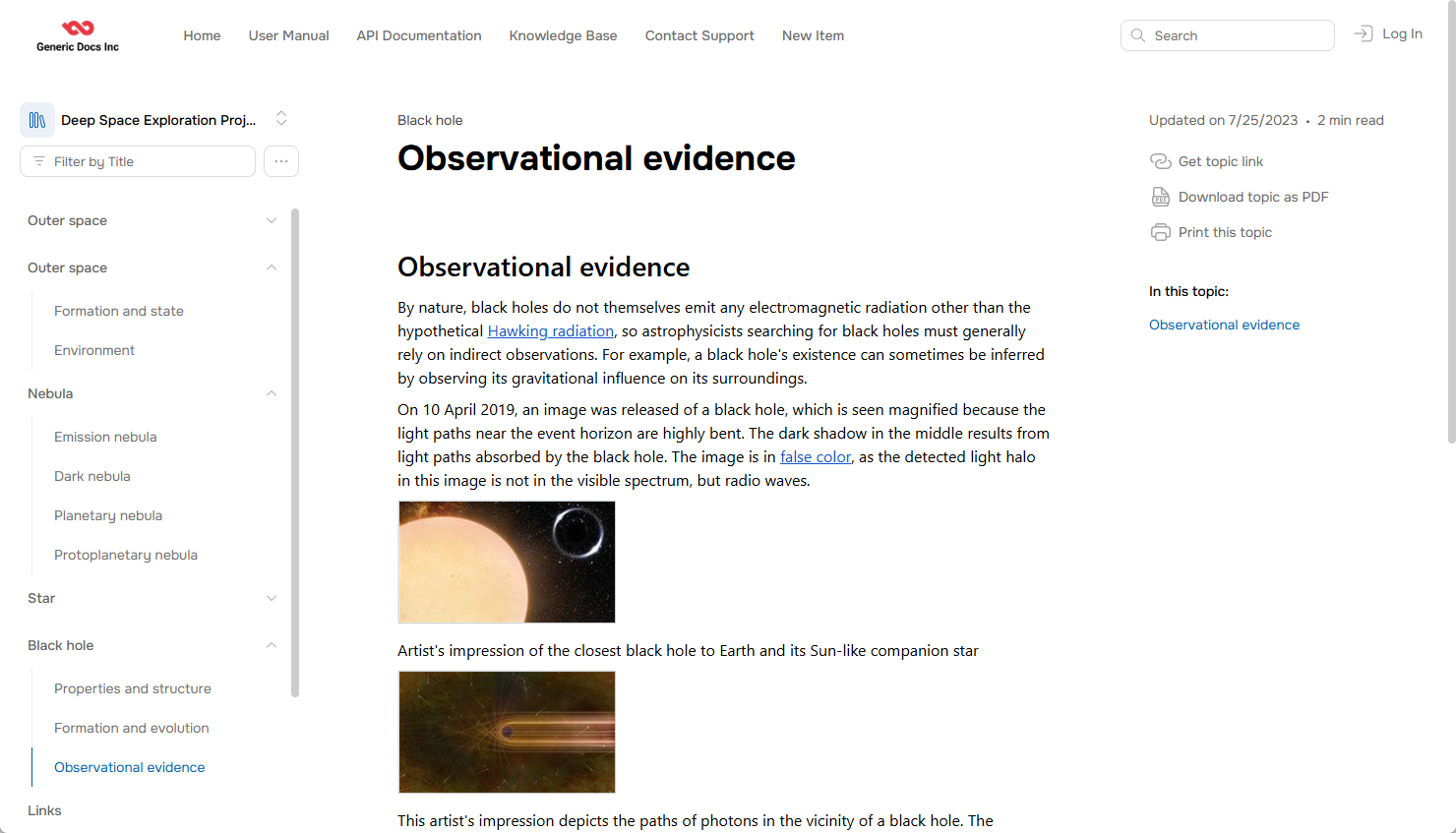 |
| Clear Sky |
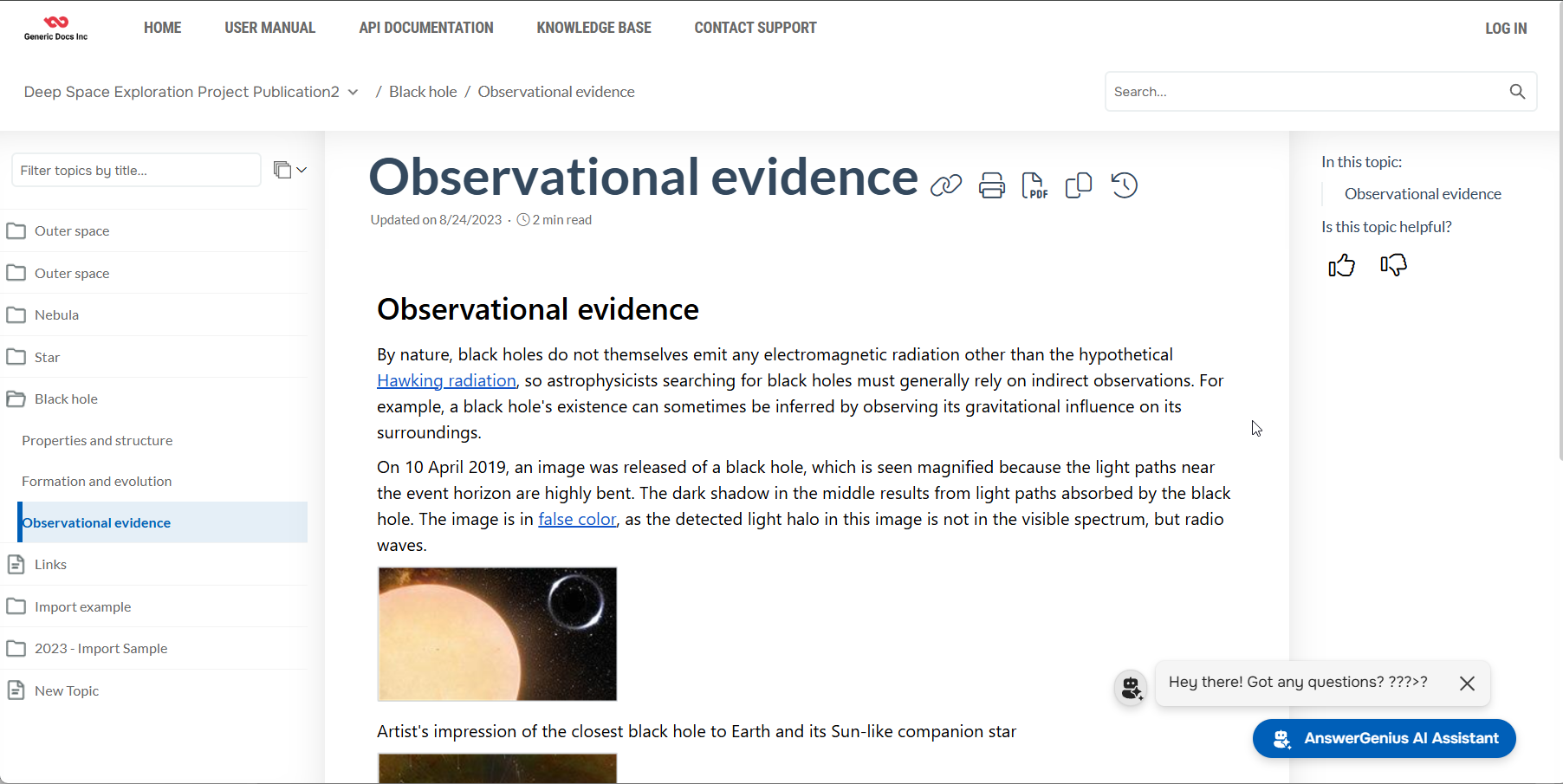 |
| Deep Space |
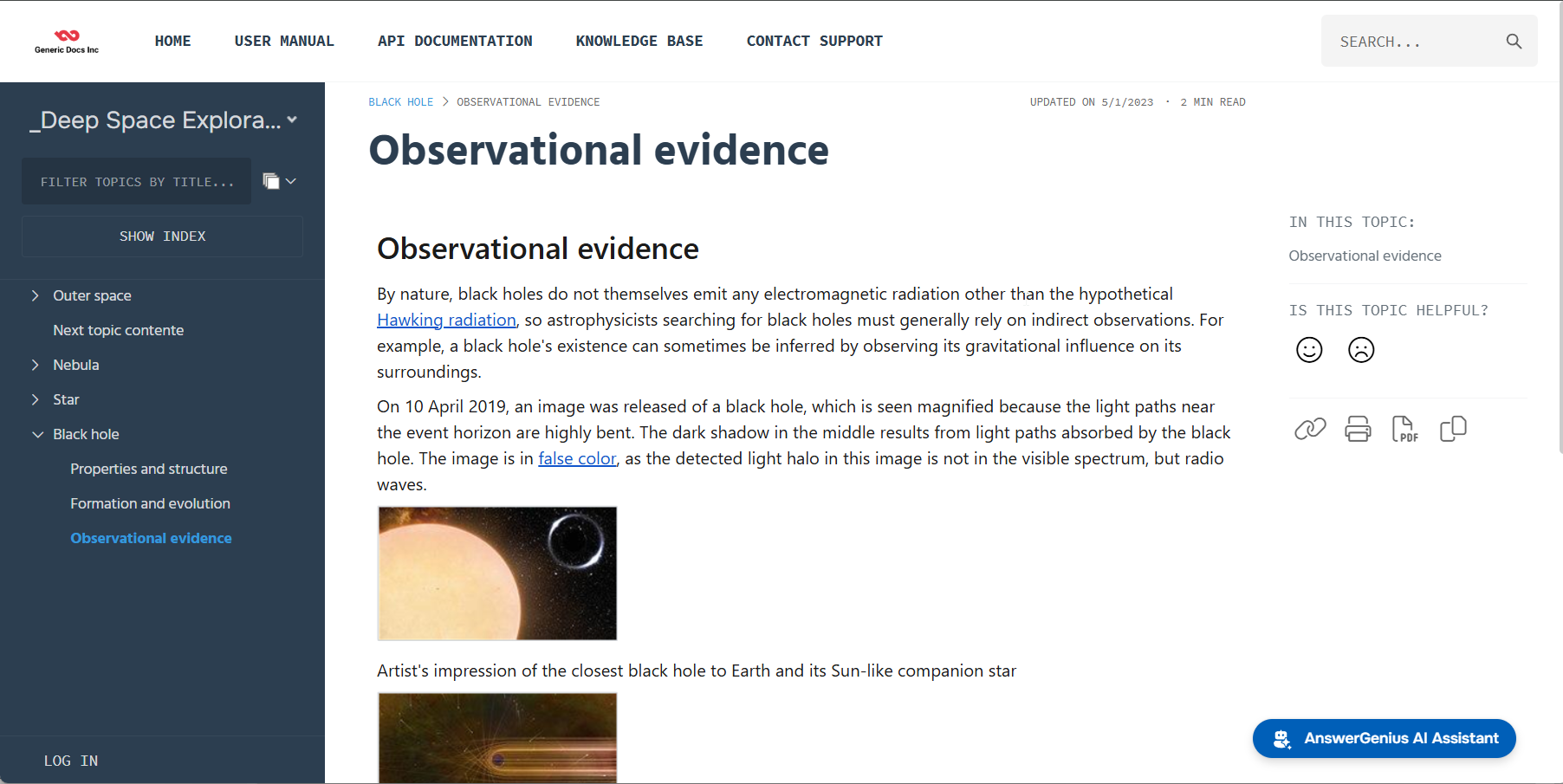 |
| Oxygen |
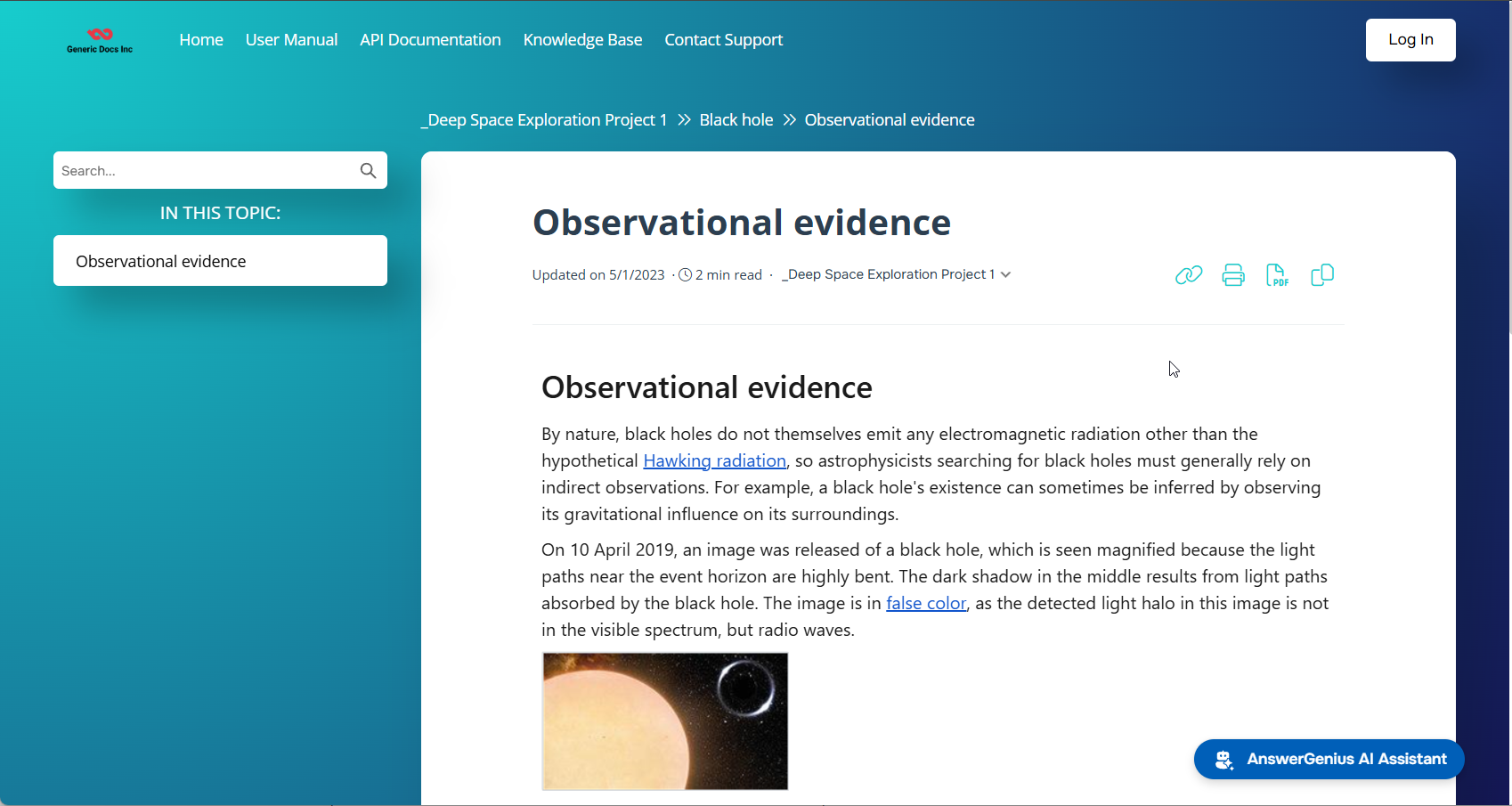 |
The Next template — a new generation of Reader UI with improved performance, a modern look, and accessibility improvements. See Next Reader UI Template for the full list of advantages, limitations, and instructions on how to enable it.
Note that depending on the template you select, some Reader UI settings may be disabled and some interface elements may be missing. The settings panel automatically adjusts to show only the options applicable to the active template.
For example, the Oxygen template doesn't have the Table of Contents (TOC). It uses a different approach: it relies on the In This Topic and Related Topics sections, breadcrumbs, and other in-page navigation elements. Choose Oxygen only if your content is well-suited to in-page navigation — for example, short topics where readers don't need to see the full TOC at all times.
Choose a Reader UI Template
To change the Reader UI template, do the following:
- Go to Settings → Look & feel → Reader Interface.
-
Select the template you want from the Reader UI Template selector.
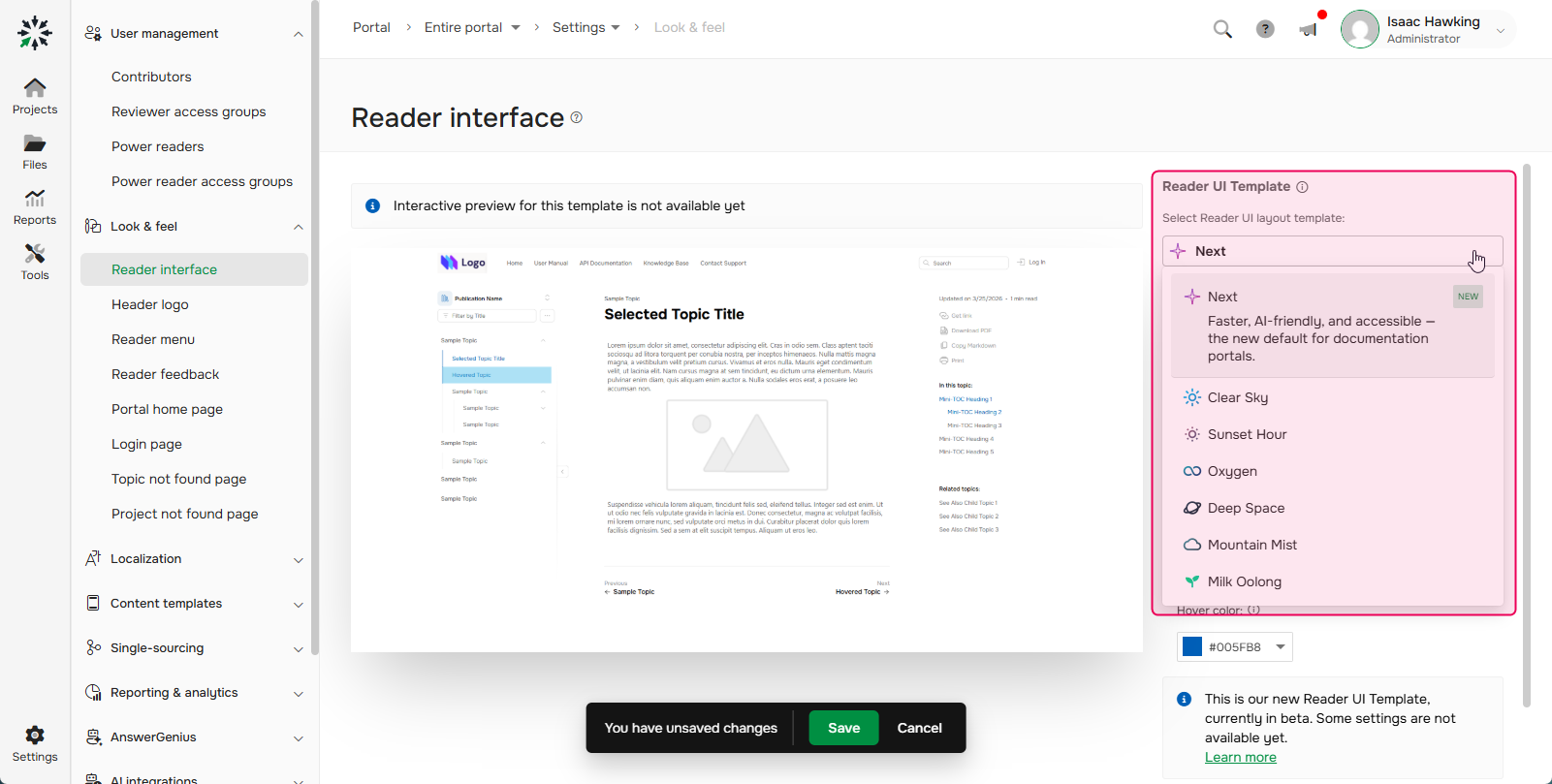
- Adjust any additional customization options if needed.
- Save the changes.
| When you change the Reader UI template, the settings of the previous template are not saved. If you decide to switch back to the previous template, you need to adjust the settings from scratch. |
Reader UI Preview
The preview area on the left side of the Reader Interface screen shows the layout and main styles of the Reader UI based on your current selection. You can access the Full-screen preview by clicking on the corresponding button.
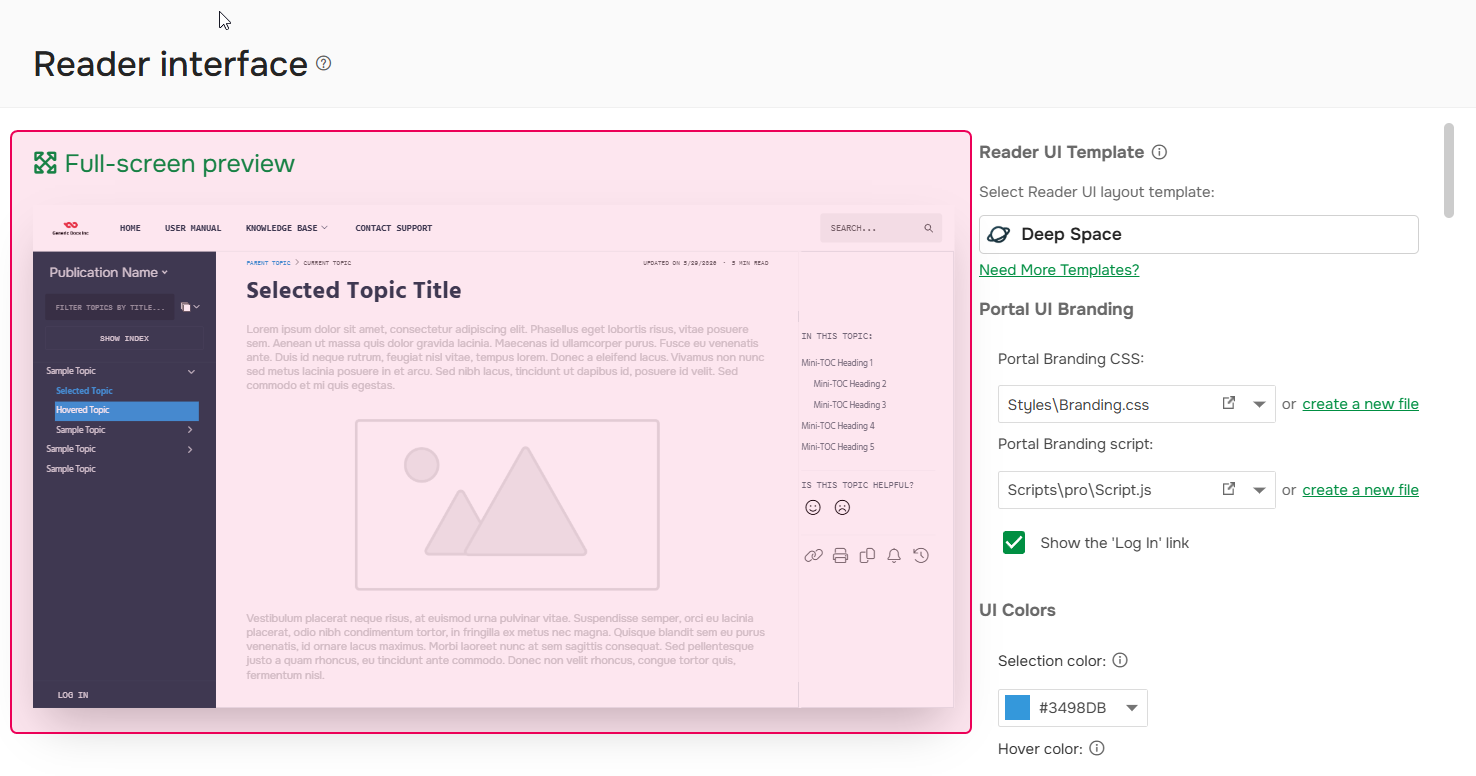
It is intended to give you a quick visual reference while configuring — for the final visual check, view a published publication as a reader:
- Log out or open a new Incognito / In Private browser session.
- Open the publication.
If your content is not published yet, you can also use the Reader Preview from the Topic Editor.
Override Reader UI Template for a Project
You may want some of your publications to look differenlty from other publications on the portal. To achieve this you can override the portal-level template for an individual project in the project-level Reader Interface settings and apply it to its publications.
- On the Projects page hover a mouse over the needed project.
-
Click Settings.
-
Go to the Look & feel → Reader interface section.
-
Uncheck the Use portal settings option.
-
Change the Reader UI template.
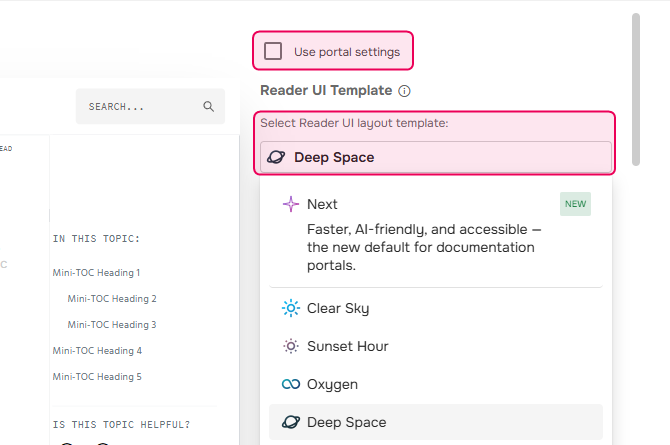
- Adjust the settings.
- If the visual settings are not enough, you might want to further customize the Reader UI with the Branding.css.
- Save the changes.
- Update publications of the project in the Full Replace mode.
| Browsers can cache the pages, so it is recommended to check the changes in the new Incognito / In Private session of your browser. |
In a similar way you can change the template for a particular publication. In this case, you won't need to update it to see the changes.