While branding today is much more than simply a visual identity, creating a documentation style that would correlate with your company's design can't be overestimated. In ClickHelp, you can add your company logo, use the same color scheme, fonts, and so on. You can familiarize yourself with ClickHelp branding capabilities further in this topic.
- What Can be Branded in ClickHelp
- Custom Domain
- Portal Home Page
- Reader Interface
- Topic and Project Not Found Pages
What Can be Branded in ClickHelp
As both readers and Contributors will be using your ClickHelp portal, note:
-
Contributor UI can't be branded.
This is the interface your Contributors use after logging in to the portal. This UI is not supposed to be branded. -
Reader Interface can be branded.
You can brand various elements of the Reader UI including, but not limited to:- Portal Home Page,
- Reader Menu with the logo,
- Reader Interface Template,
- Login Page,
- Topic Not Found Page,
- Project Not Found Page,
- Search Page.
Custom Domain
Your default portal URL looks like https://yourportal.clickhelp.co, but you can set up a custom domain name. To change the default domain name of your portal to a custom name, follow the instructions from the following topic: Custom Domain Name for Your Portal.
Portal Home Page
The portal Home page is what users see when they go to the root URL of your documentation portal, e.g., https://docs.clickhelp.com.
Let's take a look at the default view of the page and talk about its elements.
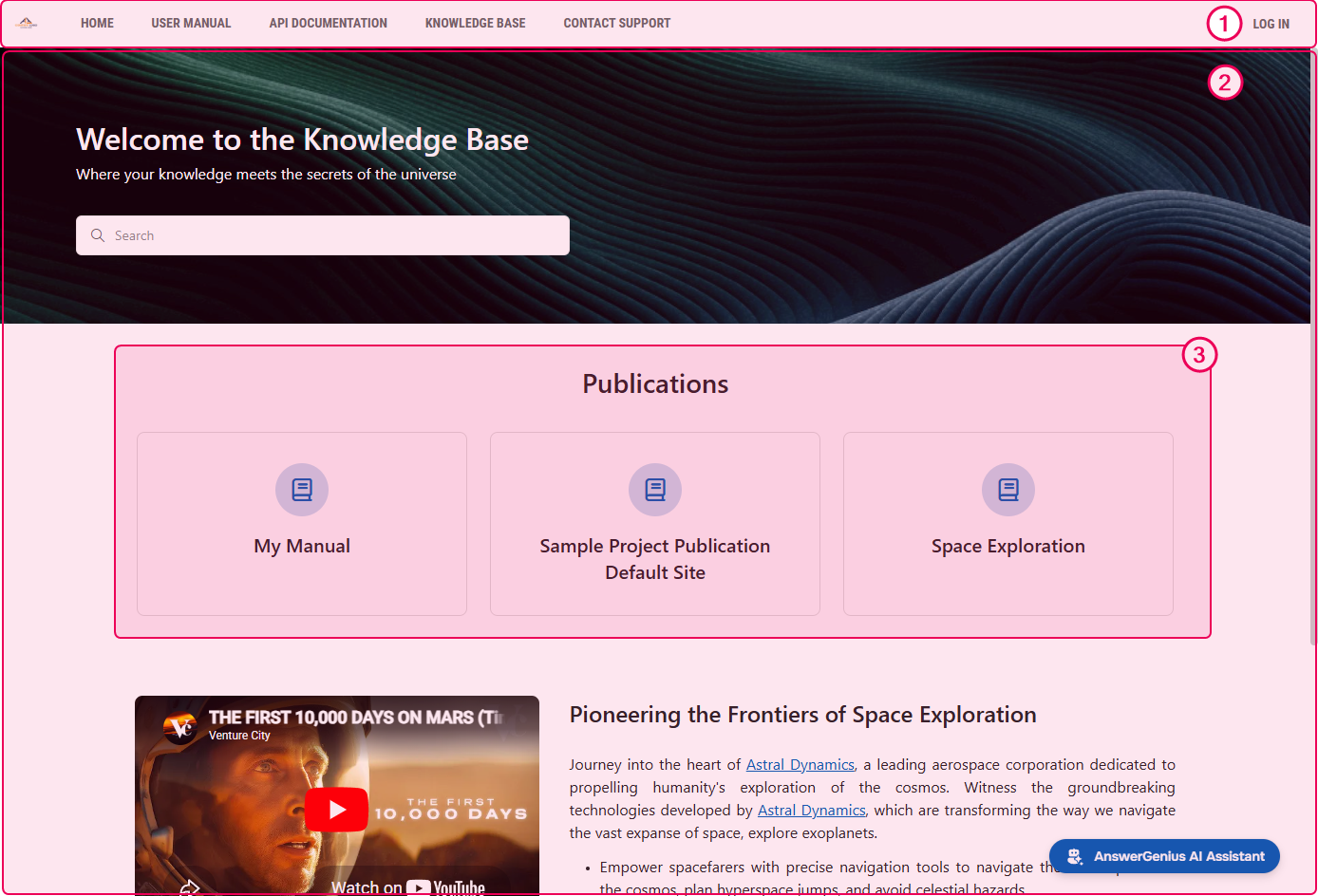
- Application Header with Reader Menu. It is not a part of the Home page as it comes from the selected Reader UI Template and its settings. The styles remain the same across your portal. You can customize the Reader Menu content using the Reader Menu Editor. In addition, you can style it using the global branding CSS file. The header logo is customized in the Header Logo settings.
-
The Home Page content. You can configure its styles and content in the Home Page Editor.
You can have fully custom HTML content of the Home page. For this, you need to use the Custom HTML Home page editor block. See our customers' examples of the custom Home page designs in the Portal Gallery. - Dynamically generated publications list (optional). Displays a list of the publications available for the current reader. This list can be different for anonymous readers and authenticated Power Readers based on their permissions.
Reader Interface
When a reader clicks a publication link on the Home page or uses a direct topic link, they see the topic in the Reader UI.
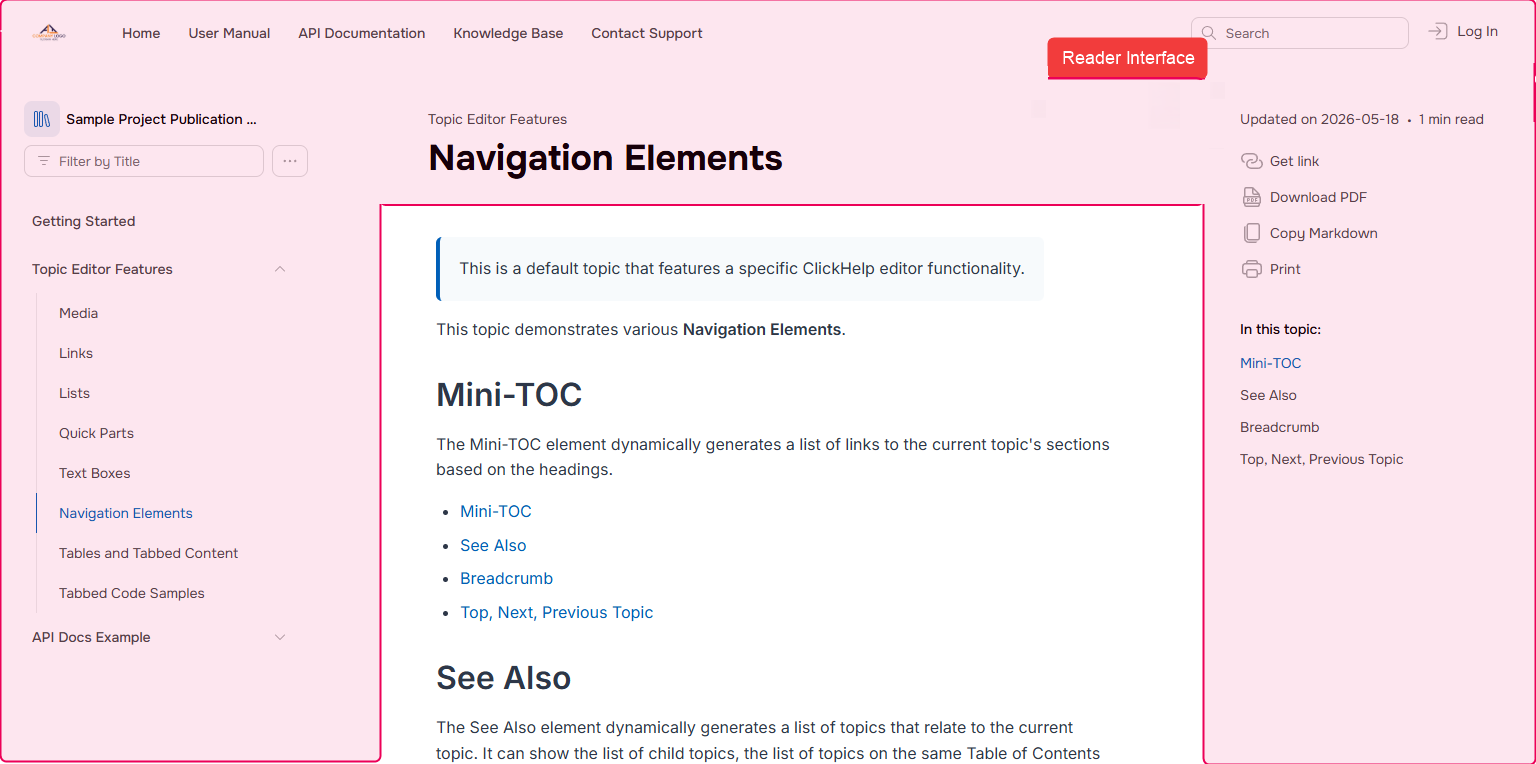
You can read more about the branding of Reader Interface here: Reader Interface.
Topic and Project Not Found Pages
You can define what users see when the topic (for readers) or project (for Contributors) cannot be found. There are default pages that look like this:
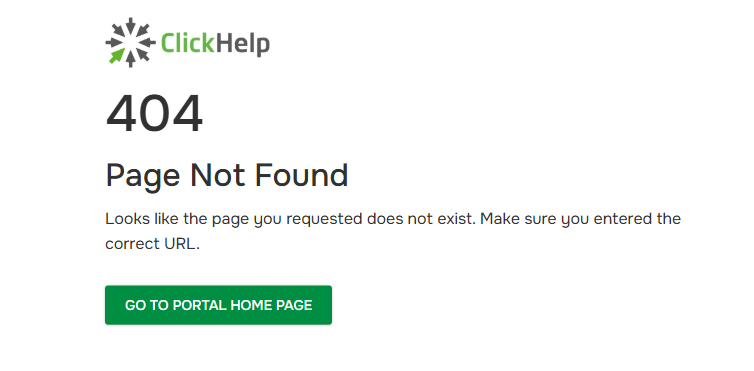
But you can override their look in the Topic (Project) Not Found page editor (Settings → Look & feel → Topic not found page).
Note that after making the changes you will need to publish the page: Draft and Published Versions of Reader-Facing Pages
In ClickHelp, you can quickly adapt your online documentation portal's look and feel to your company style book. You can see some real-life examples of how our customers customized their Reader UIs or we had it done for them in the scope of the Branding Services in our Portal Gallery. To request Branding Services or get more information about them, feel free to reach out to our Sales team.
Continue reading this section to learn more on how to implement style changes.